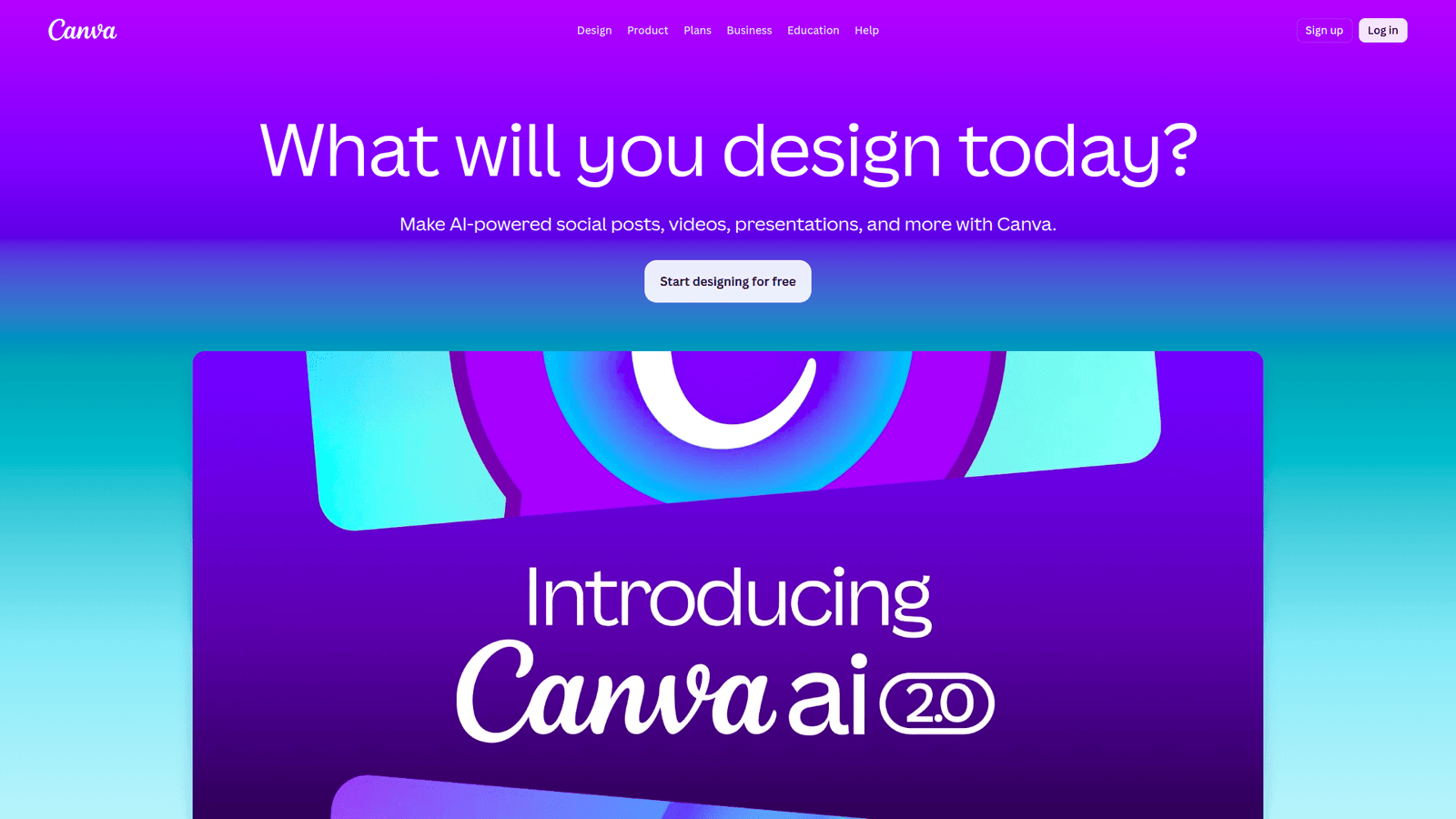

Canva revolutionizes presentation design, empowering you to create stunning visuals in minutes. Boost your impact today!
Canva Is Built for Visual and Graphic Design – Here’s Why
Visual and graphic design used to be a specialist’s game. Think expensive software, steep learning curves, and the constant need for technical wizardry. But the game has changed.
AI is exploding in every sector, and visual and graphic design is no exception. Suddenly, creating compelling visuals isn’t just for the pros.
And at the forefront of this accessibility revolution? Canva.
If you’ve ever felt overwhelmed by design software, struggled to make your presentations pop, or simply wished for a faster way to get great-looking graphics, you need to pay attention.
This isn’t about fancy jargon or unattainable skills. It’s about practical tools that deliver results. And Canva? It’s delivering.
This is the breakdown of how Canva is fundamentally shifting how we approach design, especially when it comes to knocking out killer presentations.
Forget the old way. Let’s talk about the smart way.
What is Canva?
Canva is an online graphic design platform. Think of it as a drag-and-drop powerhouse that democratises design.
It’s built for people who need to create visuals but aren’t necessarily trained graphic designers. We’re talking marketers, business owners, students, writers, social media managers – anyone who needs to make things look good, fast.
Its core function is to simplify the entire design process. Instead of wrestling with complex software, you get pre-made templates, intuitive editing tools, and a massive library of assets at your fingertips.
This makes it incredibly accessible. You don’t need to be an expert to produce professional-looking graphics.
The goal is simple: empower more people to create and share their ideas visually, without the traditional barriers to entry in visual and graphic design.
Key Features of Canva for Presentation Design
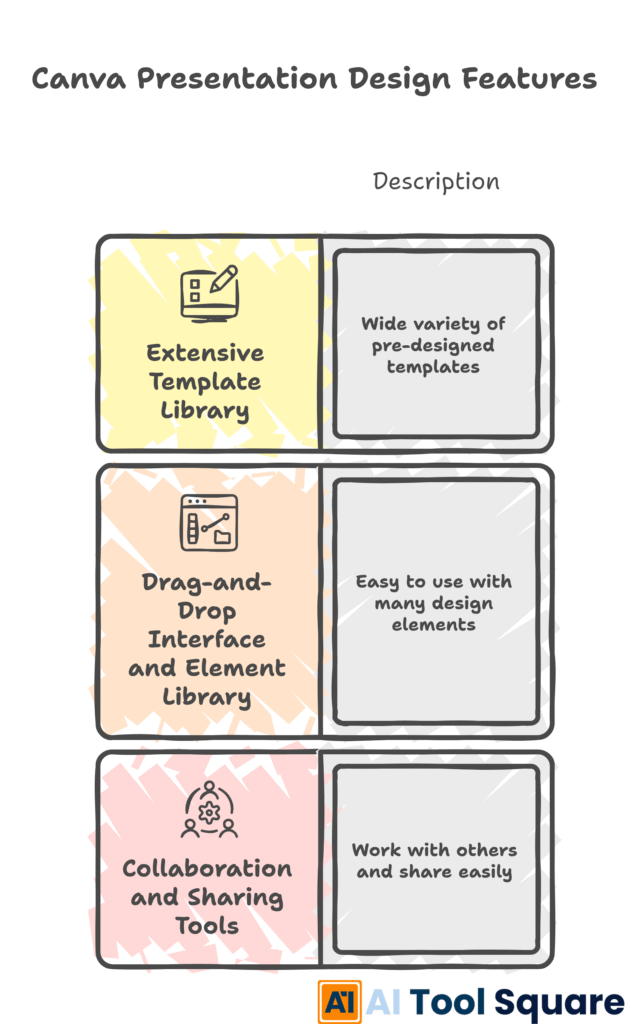
Canva isn’t just a generic design tool; it’s specifically engineered to crush your presentation design needs.
- Feature 1: Extensive Template Library
This is where the magic starts for presentations. Canva offers thousands of pre-designed presentation templates for every conceivable topic and style.
Need a pitch deck? A lecture slideshow? A webinar presentation? There’s a template for it. These aren’t just basic layouts; they’re thoughtfully designed with aesthetic appeal and information flow in mind.
The advantage here is speed and inspiration. Instead of staring at a blank canvas, you start with a professional foundation. You can then tweak colours, fonts, and imagery to make it your own. It drastically cuts down the initial design phase.
- Feature 2: Drag-and-Drop Interface and Element Library
Forget complex menus and layers. its interface is incredibly user-friendly. You can drag elements – text boxes, images, shapes, icons – onto your canvas and resize them with simple clicks and pulls.
Complementing this is a vast library of high-quality stock photos, illustrations, graphics, and icons. Need a specific icon to represent an idea? Chances are Canva has it. Want a professional photo to illustrate a point? You’ll find it here.
This makes visual storytelling effortless. You can quickly find and place the exact elements needed to support your message, ensuring your presentation is not just informative but also visually engaging.
- Feature 3: Collaboration and Sharing Tools
Modern presentations often involve teamwork. Canva excels here. You can invite team members to collaborate on a presentation in real-time.
Multiple people can work on the same file, make edits, and leave comments, streamlining the feedback and revision process. This is a massive time-saver for groups.
Once the presentation is ready, sharing is just as simple. You can download it in various formats (PDF, JPG, PNG, MP4 for video presentations) or share a direct link for online viewing. This ensures your final product is easily accessible and ready to impress your audience.
Benefits of Using Canva for Visual and Graphic Design
Let’s cut to the chase: why should you bother with Canva for your visual and graphic design needs, especially presentations?
Massive Time Savings. This is the biggest win. Creating presentations from scratch can take hours, even days. With its templates and intuitive tools, you can design a professional-looking presentation in a fraction of that time.
Improved Quality and Professionalism. You don’t need to be a design expert to create polished, high-quality visuals. Canva’s templates are designed by professionals, giving your content an immediate boost in credibility and visual appeal.
Overcoming Creative Blocks. Staring at a blank page is a killer. Canva’s vast template library and element suggestions act as a constant source of inspiration, helping you break through creative ruts and find new ideas quickly.
Cost-Effectiveness. Compared to professional design software or hiring a designer for every single project, Canva is incredibly affordable, especially its free tier. This makes high-quality design accessible to individuals and small businesses on a budget.
Accessibility and Ease of Use. The drag-and-drop interface means anyone can learn to use Canva. You don’t need years of training. This democratises design, putting powerful tools in the hands of more people.
Consistency Across Your Brand. Canva allows you to create brand kits, saving your brand colours, fonts, and logos. This ensures that all your presentations, and indeed all your visual content, maintain a consistent look and feel, reinforcing your brand identity.
Pricing & Plans

It operates on a freemium model. This is a crucial part of its appeal.
Canva Free: This is genuinely robust. You get access to a massive library of templates, photos, graphics, and fonts. You can create presentations, social media posts, flyers, and much more. It’s more than enough to get started and produce high-quality work.
Canva Pro: This is where things get serious for professionals and businesses. For a monthly or annual subscription, you unlock:
- Access to premium templates, photos, graphics, and videos.
- A Brand Kit to store your brand’s colours, logos, and fonts.
- Background Remover tool – a lifesaver for image editing.
- Magic Resize – instantly change the size of your designs for different platforms.
- Content Planner for social media scheduling.
- More cloud storage.
- Collaboration features for larger teams.
Canva for Teams: This builds on Pro, offering enhanced collaboration, workflow management, and administrative controls for larger organisations.
Compared to alternatives like Adobe Creative Suite, which can cost hundreds of dollars per month for multiple applications and require significant training, Canva Pro offers exceptional value.
The free version alone is a powerful tool, making it a highly attractive option for anyone starting out or on a tight budget. The upgrade to Pro is incremental and provides significant boosts in functionality and asset access.
Hands-On Experience / Use Cases
Imagine a content marketer tasked with creating a presentation for a new client. They need to showcase market research, proposed strategies, and projected outcomes. Traditionally, this might involve hours of fiddling with slide layouts, sourcing stock images, and ensuring visual consistency.
Using Canva, this marketer can start by searching for “business pitch deck” templates. They select a modern, clean design. Within minutes, they’re swapping out placeholder text with their client’s data and industry-specific jargon.
Need an infographic to represent growth? Its chart tools and element library make it easy to build one on the fly. Want to add impact with a striking image? They browse Canva’s premium photo collection, find the perfect one, and drag it into place.
If the client wants to see the same presentation tailored for a different audience, the marketer can use its “Magic Resize” (with Pro) to instantly adapt the slides for a shorter executive summary or a more detailed workshop format. This saves tremendous rework.
Consider a small business owner who needs to present their annual report to investors. They aren’t design-savvy. They choose a professional report template from Canva, input their financial data using simple charts, and add photos of their team and products.
The result is a polished, professional report that instills confidence, without them needing to hire an external designer. They can then download it as a PDF to share electronically or print for a physical meeting.
For educators, creating engaging lecture slides used to be a chore. Now, an educator can find a science-themed template, add interactive elements like embedded videos (easily done in Canva), and use custom icons to explain complex biological processes. The visual aid becomes a learning tool itself, not just passive text.
Teams are also leveraging it for internal presentations. Project managers can create update slides with clear timelines and task assignments, using Canva’s visual progress trackers and icon sets. This makes project status meetings more efficient and easier to digest.
Who Should Use Canva?

The beauty of Canva is its broad appeal. It’s not niche; it’s practically universal for anyone needing visual communication.
Bloggers and Content Creators: Need graphics for blog posts, social media announcements, or presentation slides to accompany video content? it is your go-to.
Marketers: From social media campaigns and email newsletters to sales decks and infographics, marketers rely on Canva to produce consistent, on-brand visuals rapidly.
Small Business Owners: You wear many hats. Design shouldn’t be a bottleneck. It lets you create professional marketing materials, presentations, and branding elements without breaking the bank or hiring an agency for every small task.
Students and Educators: For class projects, research presentations, or creating engaging educational materials, Canva offers an accessible way to make academic work visually impactful.
Non-Profits and Charities: Communicating your mission effectively is crucial. It allows these organisations to create compelling flyers, social media posts, and presentations to rally support and awareness.
Agencies (Small to Medium): Many agencies use Canva for client work, especially for social media graphics, quick campaign assets, or internal presentations. It speeds up their workflow significantly.
Freelancers (Non-Designers): Writers, consultants, coaches – anyone offering a service needs to present themselves professionally. It helps them create high-quality portfolios, proposals, and presentation decks.
Essentially, if you need to communicate visually and want to do it effectively without a steep learning curve or massive investment, Canva is designed for you.
How to Make Money Using Canva
It isn’t just for personal or internal use; it’s a powerful tool for generating income. Its accessibility and professional output open up several revenue streams.
- Service 1: Presentation Design Specialist
Many businesses and individuals struggle to create engaging presentations. You can offer your services as a Canva Presentation Designer. This involves taking client briefs, sourcing appropriate templates (or customising them heavily), and delivering polished slide decks.
Think pitch decks for startups, training modules for corporations, or keynote presentations for speakers. Your ability to translate their message into a visually compelling format using Canva is the sellable skill.
- Service 2: Social Media Graphics and Branding Packages
Businesses constantly need fresh content for social media. You can offer packages that include a set number of Instagram posts, Facebook banners, LinkedIn graphics, etc., all created with it.
Beyond just graphics, you can offer a mini-branding package. This would involve creating a simple logo, brand colour palette, and font guide within Canva, and then producing a set of branded templates for the client (e.g., social media templates, presentation templates, quote graphics).
- Service 3: Digital Product Creation and Sales
Leverage it to create digital products that you can sell on platforms like Etsy, Gumroad, or your own website. Examples include:
Templates: Design and sell Canva templates for various needs – wedding invitations, party flyers, business proposals, eBook templates, resume templates, and of course, presentation templates.
Planners and Journals: Create beautiful digital planners, habit trackers, budget sheets, or journal prompts that users can download and print or use digitally.
Printables: Design wall art, educational worksheets for kids, party decorations, or greeting cards.
The key here is to identify a need and create a high-quality, visually appealing Canva design that solves that need. The effort is in the initial design and setup; sales can become passive income.
Case Study Example: Sarah, a freelance writer, noticed her clients often needed accompanying visuals for their blog posts but couldn’t afford a dedicated graphic designer. She learned it and started offering a “Blog Post Visuals Package” that included a featured image, several social media promotion graphics, and an infographic snippet, all based on the blog post’s content. She charges $150 per package. Within six months, this service became her most profitable offering, supplementing her writing income significantly.
Limitations and Considerations
While Canva is incredibly powerful, it’s not a magic wand for every single design scenario. It’s important to be aware of its limitations.
Complex Vector Graphics: For highly intricate vector illustrations or logos requiring absolute scalability and precise bezier curves, professional vector software like Adobe Illustrator is still the standard. its graphic elements are generally raster-based or simplified vectors.
Advanced Photo Manipulation: While Canva has some basic photo editing capabilities and a background remover, it doesn’t offer the granular control of dedicated photo editing software like Adobe Photoshop for complex retouching, compositing, or colour grading.
Unique or Highly Custom Designs: If your brand requires an entirely unique visual identity with custom-made illustrations or typography that doesn’t exist anywhere else, you’ll eventually hit the ceiling of its asset library and customisation options.
Learning Curve for Advanced Features: While basic use is easy, mastering all of Canva’s advanced features, understanding design principles in context, and optimising designs for specific print or digital outputs still requires some effort and learning.
Dependency on Internet Connection: As a web-based tool, a stable internet connection is essential for using it effectively. Offline capabilities are limited.
Occasional Template Rigidity: While templates are a strength, sometimes trying to force your content into a template that’s fundamentally the wrong structure can lead to awkward designs. Knowing when to modify heavily or start from a blank canvas is a skill.
Despite these limitations, for the vast majority of visual and graphic design tasks, especially presentation design, it excels and far outweighs its drawbacks.
Final Thoughts
Canva has fundamentally changed the landscape of visual and graphic design. It’s not just a tool; it’s a platform that empowers individuals and businesses to create professional-quality visuals without the traditional barriers.
For presentation design, it’s an absolute game-changer. The ability to start with thousands of professionally designed templates, customize them with an intuitive drag-and-drop interface, and access a vast library of assets means you can create impactful presentations faster and more efficiently than ever before.
Whether you’re a seasoned designer looking to speed up your workflow or a complete beginner needing to make a professional impression, Canva delivers.
Don’t get bogged down by complex software or outsourcing costs for every visual need. Explore Canva.
Start with the free version. Play around. See what you can create. You’ll likely be surprised by the quality and speed you can achieve.
Visit the official Canva website and elevate your visual communication today.
Frequently Asked Questions
1. What is Canva used for?
Canva is used for creating a wide range of visual content, including presentations, social media graphics, posters, flyers, logos, videos, resumes, and much more. It’s designed to make graphic design accessible to everyone, regardless of their skill level.
2. Is Canva free?
Yes, it offers a robust free version that provides access to a large library of templates, photos, and design elements. A premium subscription, Canva Pro, unlocks additional features, assets, and advanced tools.
3. How does Canva compare to other AI tools?
Canva is a design platform that incorporates AI features for tasks like content generation and editing. It’s distinct from standalone AI text generators or image generators, focusing on providing a comprehensive visual design workspace with AI enhancements. It integrates AI into a user-friendly interface rather than being purely an AI output tool.
4. Can beginners use Canva?
Absolutely. Canva is renowned for its beginner-friendly interface. Its drag-and-drop functionality, extensive template library, and intuitive tools make it easy for anyone to start creating professional-looking designs with minimal learning.
5. Does the content created by Canva meet quality and optimization standards?
The quality of content created in Canva is highly dependent on the user’s design choices and understanding of design principles. While it provides professional templates and tools, the user is responsible for the final output’s aesthetic appeal, clarity, and optimization for its intended purpose (e.g., web vs. print). Many templates are designed with best practices in mind.
6. Can I make money with Canva?
Yes, you can make money with Canva by offering design services (like presentation design or social media graphics), selling digital products created in it (templates, printables), or using it to enhance your existing business offerings.
7. How to make money with Canva?
To make money with Canva, you can offer freelance design services, create and sell custom templates on marketplaces like Etsy, design digital products such as planners or eBooks, or use it to create marketing materials that boost your own business sales.